
Your Guide to the Google Merchant Center Feed

Think of a Google Merchant Center feed as the digital version of your shop’s stockroom catalogue, but one that speaks Google’s language. It’s a structured file packed with all the essential details about your products – price, colour, availability, you name it. This file is the engine that powers your Google Shopping ads and other free listings across the platform.
What Exactly is a Google Merchant Center Feed?

Your product feed is the central nervous system of your entire e-commerce advertising setup. It’s so much more than a simple spreadsheet; it’s a living, breathing list that communicates directly with Google’s algorithms. This constant dialogue is what allows Google to play matchmaker, connecting your products with the right shoppers the very second they’re searching for something you sell.
When a potential customer types “red running shoes size 9” into Google, the search engine instantly scans the product feeds from thousands of retailers. It’s on the hunt for the most accurate and relevant match, and it makes its decision based on the detailed information—or attributes—you’ve provided in your Google Merchant Center feed.
The Unshakeable Foundation of E-commerce Success
Let’s be blunt: without a well-structured and accurate feed, your products are practically invisible on Google. A feed that’s incomplete or riddled with errors is a fast track to ad disapprovals, poor campaign performance, and a whole lot of wasted ad spend. It really is the non-negotiable cornerstone of online retail visibility.
But a high-quality feed does more than just get your products seen. It builds trust, both with Google and with your potential customers. The benefits are massive:
- Sharper Ad Relevance: Detailed, accurate data helps Google show your ads to shoppers with a much higher intent to buy, leading to better click-through rates.
- Supercharged Campaign Performance: Rich product information is the fuel for powerful, granular campaigns like Performance Max, which lean heavily on feed quality.
- Maximum Visibility: A correctly formatted feed makes sure your products are eligible to show up everywhere across the Google ecosystem, including Shopping, Search, and even Google Images.
A classic rookie mistake is treating the feed as a “set it and forget it” task. The reality is your feed should be a living document. It needs constant attention and optimisation to reflect every change in your inventory, pricing, and promotional calendar.
Staying Ahead in the Competitive UK Market
For any business operating in the UK, optimising your product feed has become absolutely vital for getting noticed and driving results. With the roll-out of Google Merchant Center Next, there’s an even greater focus on matching user intent and using AI signals to boost your shop’s quality score.
For UK retailers, this means consistent feed optimisation isn’t just a good idea—it’s essential for staying competitive. Shoppers here are savvy, and factors like price, promotions, and shipping details can make or break a sale. As the experts at Optmyzr.com often highlight, diving deep into these optimisation strategies is crucial.
Ultimately, getting your feed right is the first, and most critical, step to unlocking the true power of your e-commerce advertising on Google.
Choosing the Right Google Merchant Center Feed Input Method
Deciding how to get your product data into Google isn’t just a tick-box exercise; it’s a strategic decision that can make or break your Shopping campaigns. The best input method for your Google Merchant Centre feed boils down to a few key things: the size of your inventory, your technical know-how, and how often your stock and prices change.
Let’s walk through the main options to figure out which one is the perfect fit for your business.
First, you need to get the basics right by including all the required attributes. Once that’s sorted, you can focus on optimising the optional ones to really get an edge. This simple two-step process is the core of smart feed management.
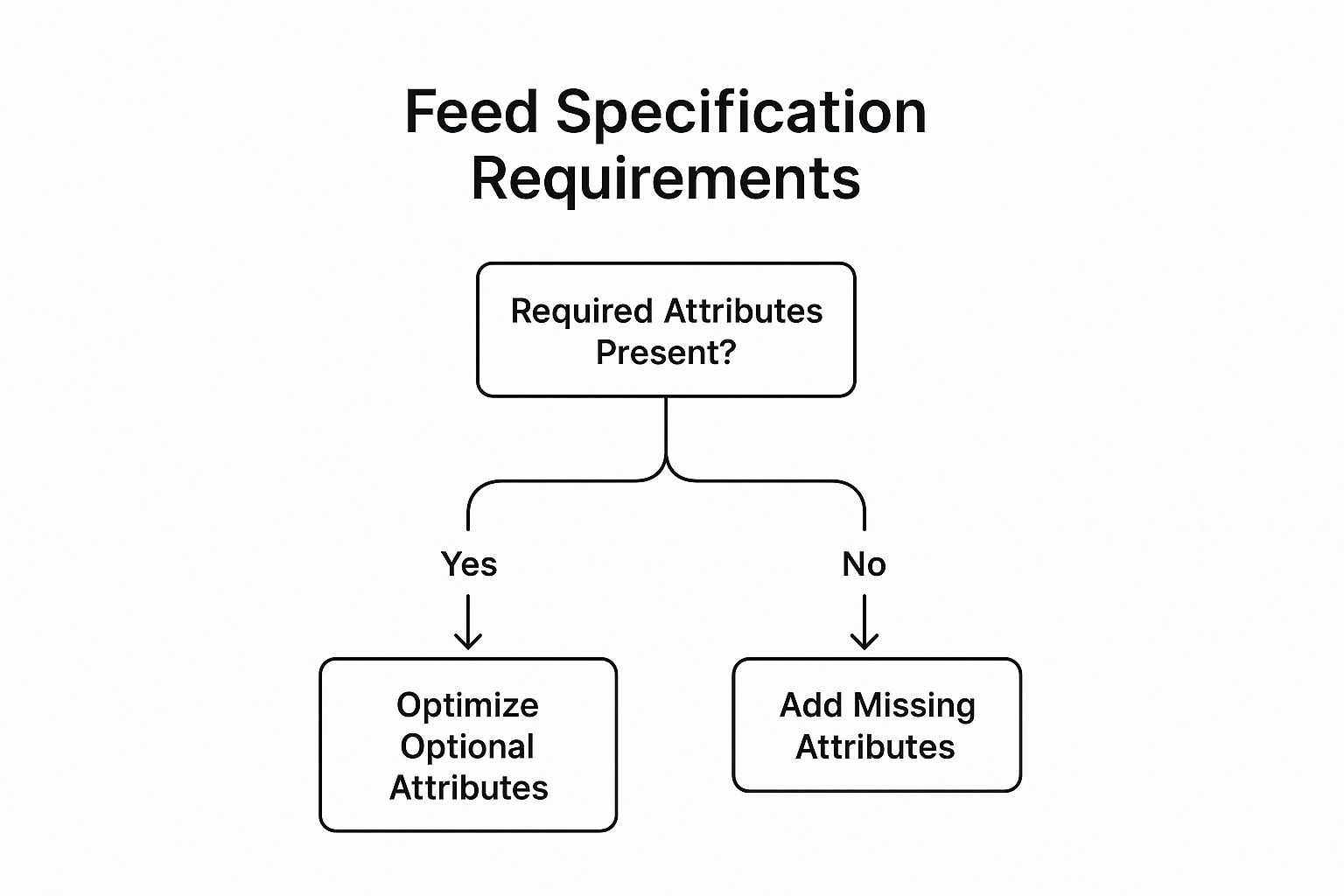
As the visual shows, a winning feed strategy always starts with compliance before moving on to optimisation.
Google Sheets For Manual Control
The most straightforward way to get started is by using a Google Sheet. Think of it as manually handing your product catalogue over to Google. You simply create a spreadsheet where every row is a product, and each column is an attribute like ‘title’ or ‘price’.
This approach gives you absolute, direct control over every single piece of data. It’s a great choice for businesses with a small, stable inventory—say, fewer than 50 products—where prices and stock levels don’t change every five minutes.
But that strength is also its biggest weakness. Entering everything by hand is time-consuming and a recipe for human error. As your business grows, keeping that sheet updated will become a massive headache, making it a poor choice for larger or more dynamic stores.
Scheduled Fetches For Regular Automation (Google Merchant Center Feed)
The next step up the automation ladder is the scheduled fetch. Here, you host a feed file (like a CSV or XML file) on your own website. Then, you just tell Google Merchant Centre where to find it and how often to pop over and grab the latest version—daily, weekly, or monthly.
Google then acts like a reliable courier, visiting your site on schedule to pick up your fresh product data. It’s a fantastic middle-ground solution that automates the updates, so you don’t have to think about it constantly. For most businesses, a daily fetch is the sweet spot for keeping price and availability info spot on.
This method nails the balance between control and automation. You’re still in charge of creating and updating the file on your server, but Google takes care of the repetitive job of uploading it.
Content API For Real-Time Updates
For the big players or any business with a fast-moving inventory, the Content API is the undisputed champion. An API (Application Programming Interface) is basically a direct, live communication line between your ecommerce platform and Google Merchant Centre.
Instead of waiting for a scheduled pickup, the API lets your system push updates to Google the very second they happen. A product sells out? Google knows instantly. A price drops for a flash sale? The update is immediate.
Now, this method does require some serious technical skill or a developer to set up. But for businesses where data accuracy is everything and changes are constant, it’s an investment that pays for itself. You’ll stop wasting ad spend on out-of-stock items and ensure customers always see the right price.
E-commerce Platform Integrations *Google Merchant Center Feed)
Finally, we have what is often the easiest route for many businesses: using an app or plugin for your ecommerce platform, like Shopify or WooCommerce. These integrations are built to do all the heavy lifting for you.
They automatically create and sync your Google Merchant Centre feed using the product information that’s already in your store. It’s by far the most user-friendly approach, turning a potentially complex task into just a few clicks. They handle all the formatting, scheduling, and updates without you breaking a sweat.
Comparison of Google Merchant Center Feed Input Methods
Choosing the right method from the start is crucial for a healthy and effective feed. To help you decide, here’s a quick comparison of the options we’ve covered, highlighting what they’re best for and the skills required.
| Method | Best For | Update Speed | Technical Skill Required |
|---|---|---|---|
| Google Sheets | Small, stable inventories (<50 products) with infrequent changes. | Manual | Low |
| Scheduled Fetches | Medium-sized businesses needing regular, automated updates. | Scheduled (Daily/Weekly) | Moderate |
| Content API | Large retailers with dynamic inventory and frequent price changes. | Real-Time | High |
| Platform Integrations | Businesses of all sizes looking for a simple, user-friendly solution. | Automated (often near real-time) | Low to None |
Each method has its place, and the best choice really depends on your specific circumstances. A small boutique will have very different needs from a large online retailer, so pick the one that aligns with your resources and growth plans.
Google Merchant Center Feed: Mastering Essential Product Feed Attributes

If your product feed is the digital catalogue you hand over to Google, then your product attributes are the DNA of every single item inside. These are the nitty-gritty details that tell Google everything it needs to know to understand, categorise, and perfectly display your products to someone ready to buy.
Getting these right isn’t just a box-ticking exercise; it’s the absolute core of a successful Google Merchant Center feed.
Think of it like building with LEGO. Each attribute—like id, title, or price—is a specific brick. When you slot them all together correctly, you create a perfect model of your product that Google’s algorithm instantly recognises. Miss a few key bricks, and the whole thing looks wonky and unrecognisable.
This section isn’t just about defining attributes. It’s about understanding why each one matters and how to fine-tune them for maximum impact, making sure your products don’t just get listed—they get seen by the right people at the right time.
The Non-Negotiable Core Attributes
First up, there are a handful of attributes that every single product in your feed needs, no exceptions. These are the absolute fundamentals, the bedrock of your product listing. Get these wrong, or miss them out, and your items will be disapproved straight away.
Let’s break down the must-haves:
id: This is your product’s unique fingerprint. It’s a permanent identifier (usually your SKU) that you create and must never change for that specific product.title: Arguably the most important attribute for driving performance. Your title is the first thing shoppers see and what Google weighs heavily for search relevance. Pack it with the keywords your customers are actually using.description: Your chance to expand on the title. While the first 150-180 characters are prime real estate, you have up to 5,000 characters to add more keywords and compelling details.link: The direct URL to your product’s landing page. It has to go to the specific product, not a general category page.image_link: The URL for your main product image. High-quality, clean images on a white background almost always perform best.availability: Tells Google if your product is ‘in stock’, ‘out of stock’, or available for ‘preorder’. Keeping this accurate is vital for building trust.price: The price your customer will pay. It must match the price on your landing page exactly to avoid frustrating disapprovals.
Nailing these core attributes is the first step in any serious Google Shopping feed optimisation strategy. By giving Google clear, detailed information, you’re helping it do its job: matching your products with high-intent searches.
Understanding Conditionally Required Attributes (Google Merchant Center Feed)
Beyond the basics, some attributes are only required under certain conditions. These are often the ones that catch retailers out, but they are incredibly powerful for helping Google distinguish your product from millions of others.
The most common conditional attributes are the Unique Product Identifiers (UPIs):
gtin(Global Trade Item Number): This is simply the product’s barcode number (an EAN in the UK or UPC in the US). If you’re selling a mass-produced item that other retailers also sell, the GTIN is essential. Google uses it to pull in extra product details and power price comparisons.brand: The brand name of the product. This is required for any new product that has a clear brand.mpn(Manufacturer Part Number): A unique code assigned by the manufacturer. If a product doesn’t have a GTIN, the MPN is the next best thing for precise identification.
For products without a GTIN, like custom-made goods or antiques, you must submit
brandandmpn. If none of these exist, you need to set theidentifier_existsattribute to ‘no’ to avoid errors.
Think of these identifiers as Google’s secret weapon. A product with a valid GTIN has a much higher chance of showing up in relevant searches and those valuable comparison listings.
Attributes for Apparel and Product Variants
Selling products that come in different sizes, colours, or materials? This is where item group attributes become non-negotiable. They are crucial for grouping all your product variants together, so customers see one clean listing with options to choose from.
Key variant attributes include:
item_group_id: This is the parent SKU that links all variants of a product together. For example, a t-shirt in three sizes would all share the sameitem_group_id.color: The primary colour of the item. Be specific here – think ‘Crimson Red’ instead of just ‘Red’.size: The specific size. Keep your formatting consistent across all products (e.g., use ‘L’ or ‘Large’, but not both).material: The main fabric or material used to make the product.
Getting these right stops your product variants from competing against each other and creates a much smoother shopping experience.
Finally, keeping up with regional rules is vital. For example, since April 2025, Google has updated its rules for energy efficiency labels in the UK. The energy_efficiency_class attribute remains mandatory for many products, and making sure this data is correct is key to avoiding disapprovals. This is all part of a bigger trend of automating data to improve consistency. For a deeper dive into improving your data, check out our guide on Google Shopping feed optimisation.
Google Merchant Center Feed: Getting Your First Product Feed Created and Submitted
Alright, you’ve sorted your product data and have the key attributes lined up. Now for the exciting part: creating and submitting your first Google Merchant Center feed. This is the step that takes your products from a spreadsheet on your computer and puts them onto Google’s global stage.
Think of it as the official handover. You’ve done all the hard work of organising your product info, and now you’re delivering it to Google so it can get to work showing your items to eager shoppers. It might sound a bit technical, but if you follow the process, it’s actually pretty straightforward.
Let’s walk through it, from setting up your account to hitting ‘submit’, making sure you’ve got a clear path to getting your products live without any headaches.
Nailing the Foundations in Merchant Center
Before you can even think about uploading data, you’ve got to get the basics sorted in your Google Merchant Center (GMC) account. These first few steps are non-negotiable and are there to prove to Google that you’re a legitimate business with a real, working website.
- Sign Up and Set Up Your Account: First things first, if you don’t have one, you need to create a Google Merchant Center account. You’ll be asked for basic business details like your name, country, and time zone. Get this right from the start.
- Verify and Claim Your Website: Next up, you have to prove you own your website. This is a massive trust signal for Google. You can do this by adding a small HTML tag to your site, uploading an HTML file, or linking it through Google Analytics or Tag Manager. Once it’s verified, you then need to “claim” the URL, which officially ties it to your GMC account.
You simply can’t skip these steps. Without a verified and claimed website, Google won’t even look at your feed. You’ll be stopped before you even get going.
Registering Your New Product Feed (Google Merchant Center Feed)
With your account all set up and verified, it’s time to register your primary feed. This is basically you telling Google, “Hey, I’m about to send you a data file. Here’s what to expect, how I’ll send it, and who it’s for.” It’s a bit like booking a delivery slot for your data.
Inside Merchant Center, just head to Products > Feeds and hit the big blue plus (+) icon. From there, Google will ask you a few simple questions:
- Country of sale: Where are your products sold? (e.g., United Kingdom).
- Language: What language is your product data in? (e.g., English).
- Destinations: Where do you want your products to show up? You’ll see options like ‘Free listings’ and ‘Shopping ads‘.
Getting this right ensures your feed is aimed at the right audience and programmes. If you’re just starting out, ticking both Free listings and Shopping ads is a great way to get the widest possible reach.
Think of registering your feed as labelling a specific filing cabinet for Google. You’re telling it, “This cabinet will contain all product data for the UK, in English, and its contents should be used for both free and paid placements.”
After covering those basics, you’ll choose how you want to get the data to Google – via Google Sheets, a Scheduled fetch, the Content API, or a direct upload. As we’ve already covered, the best method for you really depends on your business size and technical setup.
For many, using a service that automates this whole process is a massive time-saver. If you want to get into the nitty-gritty of how this works, our detailed guide on the Google Shopping product feed breaks it down even further.
Uploading and Processing Your Feed
Once your feed is registered, the final piece of the puzzle is to actually provide the data file. If you went with Google Sheets, you’ll link your spreadsheet or use a template from GMC. If you chose a scheduled fetch, you’ll give Google the URL where your feed file lives.
As soon as you upload or link your file, Google’s systems will kick into gear and start processing it. This isn’t instant – it can take anything from a few minutes to a couple of hours, especially if you have a massive inventory. During this time, Google is scanning every single product to check it meets its policies and data requirements.
After it’s done, head straight to the Diagnostics tab. This is your feed’s health report card. It flags any errors (which stop products from showing) or warnings (which might just hurt their performance). Don’t panic if you see a sea of red on your first go – that’s completely normal. Use the feedback here to tweak your data, fix the issues, and re-upload. Getting that feed submitted successfully is a huge milestone on your way to e-commerce success.
Optimising Your Google Merchant Center Feed for Peak Performance
Getting your product data submitted is really just the starting line. If you want to win the race for visibility and sales, you need a properly optimised Google Merchant Center feed. This is where we move beyond the basic setup and get strategic.
Powerful optimisation can turn a simple product listing into a magnet for clicks. It’s about creating a compelling, highly relevant ad that grabs a shopper’s attention at the exact moment they’re ready to buy.
This isn’t about just ticking boxes to meet Google’s minimums. It’s about proactively beefing up every bit of data you send over. Give Google’s algorithms exactly what they need to favour your products, and you’ll see your listings not only show up more often but perform miles better when they do.
Crafting High-Intent Product Titles
Your product title is arguably the most important part of your listing. It’s the headline that has to do all the heavy lifting – grabbing attention and giving Google the main clues to match your product with what people are searching for. A weak title gets scrolled past; a strong one drives quality clicks.
The trick is to structure your titles in a way that makes sense, putting the most vital info right at the front. Put yourself in your customer’s shoes and think about what they’d type into the search bar.
A winning formula often looks something like this:
Brand + Product Type + Key Attributes (Colour, Size, Material) + Gender
So, instead of a vague title like “Running Trainers,” a much better, optimised version would be “Nike Air Zoom Pegasus – Men’s Running Trainers – Blue – Size 10.” That level of detail is a direct answer to a specific search, which skyrockets its relevance and, in turn, your click-through rates.
The Power of Persuasive Descriptions (Google Merchant Center Feed)
While the title gets the initial click, the product description is your chance to seal the deal. It gives Google more context and keywords to understand your product, and it gives shoppers the extra info they need to buy with confidence.
You have up to 5,000 characters to play with, but those first 150-180 characters are absolutely critical. Use that prime real estate to shout about the best features and benefits. Weave in your main keywords naturally, tell a little story about the product, and answer questions before they’re even asked.
A well-written description does more than just list features; it builds confidence. By providing rich, detailed information, you reduce buyer uncertainty and reinforce the value of your product, making the decision to click ‘buy’ that much easier for the customer.
Leveraging High-Quality Visuals
Let’s face it, online shopping is a visual game. Your product images are your digital shop window, so high-resolution, professional photos are completely non-negotiable. Your main image should always be on a clean, white background, but don’t just stop there.
Use the additional_image_link attribute to your advantage. Show your product from different angles, show it being used in a real-life context, or zoom in on special details and textures. You can even include a shot of the packaging. Every extra image is another opportunity for a customer to connect with your product.
Using Supplemental Feeds Strategically (Google Merchant Center Feed)
What happens when you want to add some promotional text for a sale or test out new titles without messing up your main product database? This is where supplemental feeds become your best friend. Think of a supplemental feed as an overlay; it lets you add or even change information in your primary feed without touching the original source.
You can use them to:
- Add promotional text for things like Black Friday or seasonal sales.
- Include custom labels to segment your campaigns better (e.g., ‘bestseller’, ‘high-margin’).
- Quickly fix errors or fill in missing data without a major headache.
This kind of flexibility is a massive advantage for agile marketing, and it keeps your core Google Merchant Center feed clean and reliable. As you get deeper into your strategy, it’s also smart to keep an eye on platform updates. For example, you can learn more about upcoming changes to Google Merchant Center click reporting that could impact how you track performance.
Troubleshooting Common Google Merchant Center Feed Errors
Opening up your Google Merchant Center Diagnostics tab to a sea of red can feel like your car’s dashboard lighting up with warning signs. It’s an unnerving sight, but it rarely means disaster is just around the corner. More often than not, these issues are common hiccups that are surprisingly straightforward to fix. Think of this section as your go-to manual for getting your products back on the road.
We’re going to break down the most common error messages and give you clear, actionable steps to solve the problems that trip up nearly every merchant at some point. Once you learn how to spot the root cause—whether it’s a simple typo in your Google Merchant Center feed or a data mismatch with your website—you’ll be able to keep your products live and your account in Google’s good books.
Decoding Price and Availability Mismatches
One of the most frequent offenders you’ll come across is a mismatch between the price or availability listed in your feed and what’s actually on your product landing page. Google’s bots are constantly crawling your site to make sure everything lines up. If they spot a difference, they’ll disapprove the item almost instantly to avoid sending shoppers to a page with incorrect information.
Usually, these mismatches boil down to a few simple reasons:
- Time Lags: Your feed only updates once a day, but you launched a flash sale on your website this morning.
- Structured Data Errors: Google’s bots are struggling to correctly read the price from your website’s underlying code.
- Multiple Prices: Your landing page might show a few different prices (like a one-off purchase versus a subscription model), and Google isn’t sure which one to use.
The fix? Make sure your data sources are always in sync. Daily feed updates, especially during sales periods, are a great habit to get into. Keeping your product information accurate and fresh is a non-negotiable for smooth campaign performance.
Tackling Missing Unique Product Identifiers
Another regular hurdle is the dreaded “Missing GTIN” error. As we’ve mentioned, a GTIN (Global Trade Item Number) is basically the product’s barcode. Google relies on it to properly categorise your item and compare it with others in the marketplace. If you’re selling new, branded products that have a GTIN but you haven’t included it, your products will be disapproved.
The solution here is simple: find the correct GTIN for your product and add it to your feed. For items that genuinely don’t have one, like custom-made goods or antiques, you need to tell Google this directly by setting the
identifier_existsattribute to ‘no’.
Jumping on these errors quickly is vital for maintaining a healthy feed and minimising the downtime for your products. A consistently healthy feed is a cornerstone of maximising your ROI with Google pay-per-click advertising strategies. By fixing issues as they pop up, you ensure your campaigns always have access to your full product catalogue, preventing missed sales and keeping your performance humming along.
Got Questions? We’ve Got Answers
Diving into the world of Google Merchant Center feeds can feel a bit like learning a new language. It’s normal for a few questions to pop up along the way. Here are some of the most common ones we hear, with straightforward answers to get you back on track.
How Often Should I Update My Feed?
For most online stores, a daily update is the sweet spot. This keeps crucial details like your prices and stock levels perfectly in sync with what’s on your website. Consistency here is key to avoiding those annoying product disapprovals and making sure your customers see the right information.
Of course, if your stock is flying off the shelves and prices change throughout the day, you’ll want something more robust. In that case, the Content API is your best friend, allowing for real-time updates as things change.
What’s the Difference Between a Primary and a Supplemental Feed?
Think of it like this: your primary feed is the main rulebook for all your products. It’s the complete, stand-alone file that contains every single piece of required information Google needs to list your items. It has to work all by itself.
A supplemental feed, on the other hand, is like an extra set of instructions you can layer on top. It’s totally optional but incredibly handy. You can use it to add or change details in your primary feed without messing with the original file – perfect for running seasonal sales, adding custom labels for specific campaigns, or fixing small data errors on the fly.
Can I List Products Without a GTIN?
Yes, you absolutely can, but there’s a catch. While a GTIN (Global Trade Item Number) is a huge help for performance and is generally a must-have, Google understands that not every product has one. Think custom-made furniture, one-off vintage finds, or antiques.
The crucial step is to explicitly tell Google the GTIN doesn’t exist. You do this by setting the ‘identifier_exists’ attribute to ‘no’ in your feed for that specific product. If you skip this, Google will flag it as an error, and your product won’t show.
At PPC Geeks, we live and breathe Google Merchant Center. Our job is to get deep into the details of your feed, optimising every last attribute to squeeze the maximum performance and ROI out of your campaigns. Stop the guesswork and let our award-winning UK team take the reins. Find out how we can help you grow.
Author

Search Blog
Free PPC Audit
Subscribe to our Newsletter

The Voices of Our Success: Your Words, Our Pride
Don't just take our word for it. With over 100+ five-star reviews, we let our work-and our satisfied clients-speak for us.

"We have been working with PPC Geeks for around 6 months and have found Mark and the team to be very impressive. Having worked with a few companies in this and similar sectors, I rate PPC Geeks as the strongest I have come across. They have taken time to understand our business, our market and competitors and supported us to devise a strategy to generate business. I value the expertise Mark and his team provide and trust them to make the best recommendations for the long-term."
~ Just Go, Alasdair Anderson